Barcode Generator
- Choose a barcode type (Code 128 / EAN-13 / UPC-A / Code 39).
- Enter the content and adjust **Scale** and **Height** for readability.
- Enable or disable the human-readable text under the bars.
- Download PNG and print it (avoid cropping the whitespace around the bars).
Help
FAQ
Which barcode type should I use?ShowHide
For internal IDs and mixed letters/numbers, use Code 128. For retail products, use EAN-13 (EU) or UPC-A (US). Code 39 is common in some legacy workflows but supports fewer characters.
Why can’t my barcode be scanned?ShowHide
Most failures are caused by printing too small, low contrast, or cropping the quiet zone (whitespace). Increase Scale/Height, print darker, and keep margins.
Does this tool support check digits for EAN/UPC?ShowHide
EAN-13 and UPC-A include a check digit. If your number is missing the final check digit, scanning apps may reject it. Use a full-length valid code.
Is a barcode secure/encrypted?ShowHide
No. Barcodes are an encoding, not encryption. Anyone can scan and read the content.
Can I use this for shipping labels?ShowHide
For many shipping carriers you’ll need specific symbologies and formatting. This tool is best for generic barcodes and internal labels.
How to generate a barcode
- Choose a barcode type (Code 128 / EAN-13 / UPC-A / Code 39).
- Enter the content and adjust **Scale** and **Height** for readability.
- Enable or disable the human-readable text under the bars.
- Download PNG and print it (avoid cropping the whitespace around the bars).
Privacy
Full guide
What this tool does
This page generates 1D barcodes for common workflows like labels, inventory, and internal tracking.
You can adjust:
- Barcode type (symbology)
- Scale (bar width)
- Height (bar height)
- Whether to show human-readable text
Code 128 Barcode
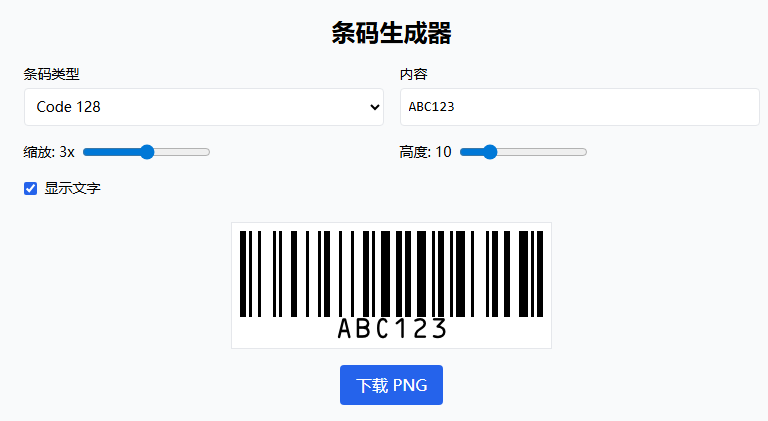
Code 128 supports alphanumeric characters, ideal for internal IDs and inventory management.
EAN-13 Barcode
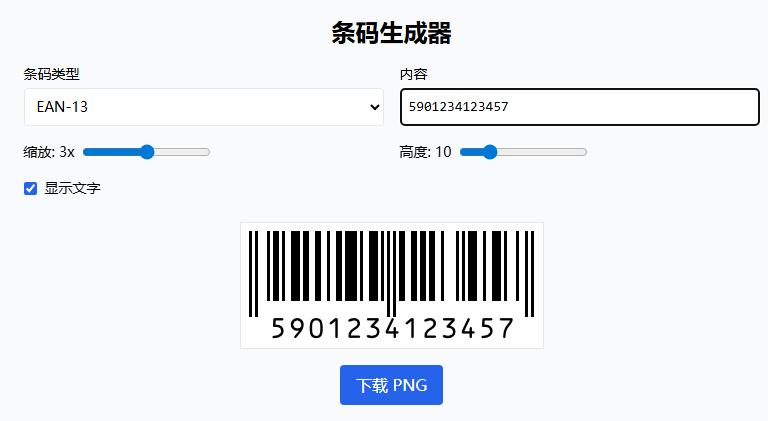
EAN-13 is used for retail product barcodes, numeric-only format, commonly found on product packaging.
Examples (copy-paste)
Code 128 (recommended for internal IDs)
INV-2026-0001
EAN-13 (retail products, numeric)
5901234123457
UPC-A (retail products, numeric)
036000291452
Code 39 (limited character set)
CODE39
Printing tips (scan success checklist)
- Keep the quiet zone: don’t crop the whitespace around the barcode.
- Use high contrast: black bars on white background.
- Avoid making it too small: if scanners struggle, increase Scale and Height.
- For physical labels, prefer printing at higher quality (e.g. 300 DPI).
Troubleshooting
- If the barcode looks correct but won’t scan, try:
- Increasing Scale first
- Increasing Height next
- Disabling “show text” if the text overlaps or reduces contrast
- Printing darker / using a higher-quality printer
- If your content contains special characters, choose Code 128.