TXT to CSV Converter – Convert Text File to CSV Online (Delimiter & Fixed-Width)
Drag file here, or click to select file
- Paste text or upload a TXT/text/TSV/CSV file.
- Choose Auto detect or set a delimiter manually (comma, tab, pipe, semicolon, space).
- If the text looks garbled, pick the right encoding (UTF-8, GBK, Shift-JIS…) from the Encoding dropdown.
- Toggle "First row is header" and "Excel-compatible (BOM)" as needed.
- Preview instantly, then click Download CSV or Copy CSV.
Help
FAQ
How to convert fixed-width text file to CSV?ShowHide
Which delimiters are supported?ShowHide
Is my data uploaded?ShowHide
How to export text as a CSV file?ShowHide
Is this TXT to CSV converter free to use?ShowHide
Can I convert large TXT or log files to CSV?ShowHide
Why does my converted CSV show garbled characters (mojibake)?ShowHide
Why does Excel show garbled Chinese when I open the CSV?ShowHide
The first row of my file is data, not column names. How do I avoid losing it?ShowHide
Can I copy the CSV result without downloading a file?ShowHide
How to convert TXT to CSV online
- Paste text or upload a TXT/text/TSV/CSV file.
- Choose Auto detect or set a delimiter manually (comma, tab, pipe, semicolon, space).
- If the text looks garbled, pick the right encoding (UTF-8, GBK, Shift-JIS…) from the Encoding dropdown.
- Toggle "First row is header" and "Excel-compatible (BOM)" as needed.
- Preview instantly, then click Download CSV or Copy CSV.
Privacy
Full guide
TXT to CSV Converter
This tool converts text with various delimiters to standard CSV files, supporting both auto-detection and manual delimiter settings. It also handles non-UTF-8 encodings, Excel-compatible BOM output, and a header toggle — the three things that most often trip up a plain "save as CSV".
Tab-Delimited (TSV)
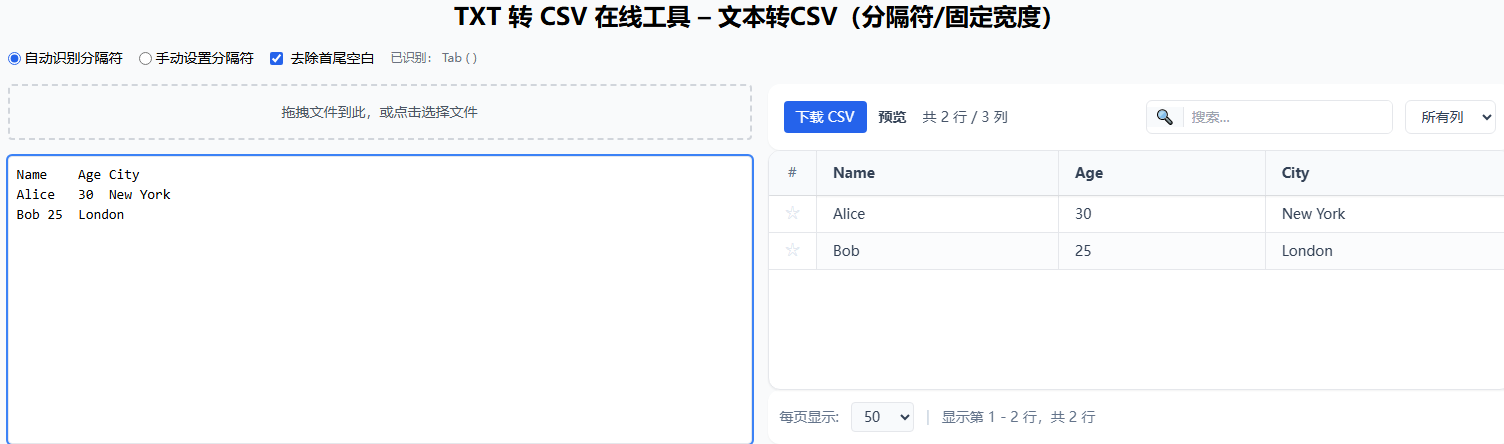
Auto-detects tab-separated data, ideal for TSV files or data copied from spreadsheet software.
Comma-Delimited (CSV)
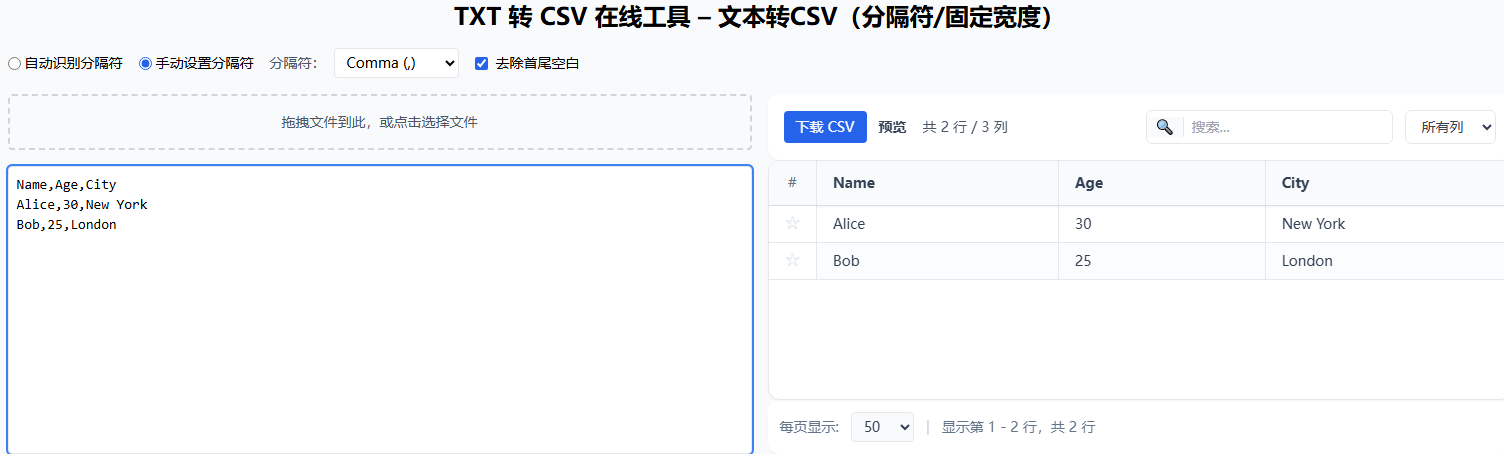
Auto-detects comma-separated data, the most common CSV format.
Fixed-Width Text
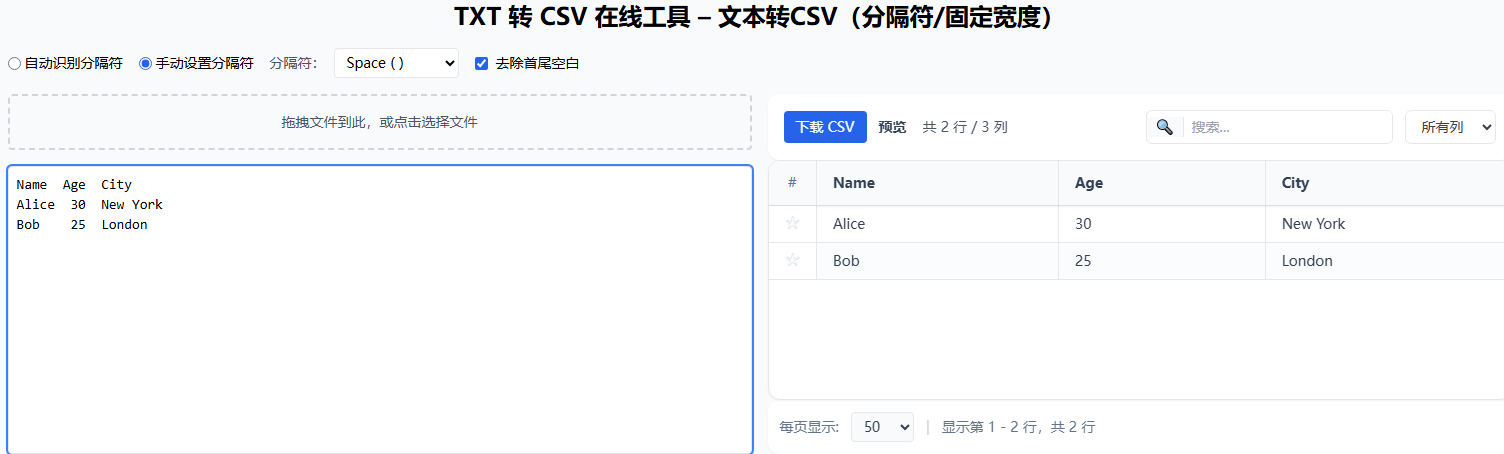
Select Manual delimiter → Space to handle fixed-width columns. The tool splits on 2+ spaces.
What Is a TXT File?
A TXT file (plain text file, usually .txt) is the simplest possible container for text: a sequence of characters with line breaks, and nothing else — no built-in notion of rows, columns, or data types. The "structure" of a TXT file is purely a convention chosen by whoever created it: it might be comma-separated, tab-separated, pipe-separated, fixed-width (columns padded with spaces), or free-form prose.
Because TXT has no self-describing format, two problems follow:
- The reader has to guess the delimiter. That is what the Auto-detect mode does.
- The encoding is ambiguous. A TXT file carries no label saying "I am GBK" or "I am Shift-JIS", so a reader that assumes UTF-8 will show mojibake for anything else. That is what the Encoding dropdown solves.
What Is a CSV File?
A CSV file (Comma-Separated Values, .csv) is a standardized text format for tabular data. Each line is a row, and within a row the columns are separated by a delimiter (by default a comma). The one rule that makes CSV more than "just text" is quoting: a field that contains the delimiter, a newline, or a quote is wrapped in double quotes, and internal quotes are doubled. That rule is what lets a cell contain "Smith, John" without breaking the row into two columns.
This tool uses PapaParse for both parsing and writing, so quoting and escaping are handled correctly — you do not have to worry about a comma inside a cell corrupting your output.
TXT vs CSV: What Is the Difference?
| Aspect | TXT | CSV |
|---|---|---|
| Structure | No fixed structure — delimiter is a convention | Tabular: rows + delimited, quoted columns |
| Quoting | None | Fields with delimiter/newline/quote are quoted |
| Data types | Everything is text | Everything is text (types are inferred by the reader) |
| Encoding | Ambiguous, often non-UTF-8 | Conventionally UTF-8 (with BOM for Excel) |
| Best for | Free-form notes, logs, single-document text | Tabular data exchange between apps |
In short: TXT is "just characters"; CSV is "characters plus a quoting rule". Converting TXT to CSV means (a) deciding the delimiter, (b) parsing the rows, and (c) re-writing every field with correct quoting so that a value containing the delimiter no longer breaks the table.
When to Convert TXT to CSV
- You exported data from an old system as tab- or pipe-delimited text and need a
.csvfor a spreadsheet or BI tool. - You copied a table from a web page or terminal and it landed as tab-separated text in your clipboard.
- You have a fixed-width report (bank statement, mainframe dump, log) and want real columns.
- You received a GBK / Shift-JIS text file that opens as garbled characters and want a clean UTF-8 CSV.
- You need to feed a machine-learning or ETL pipeline that only accepts CSV input.
Encoding, Mojibake, and the BOM
The single most common reason a TXT-to-CSV conversion "looks wrong" is an encoding mismatch. Here is the 30-second version:
- UTF-8 is the modern default and what the web expects. Most files from Linux/macOS and the web are UTF-8.
- UTF-16 LE / BE encodes each character in 2–4 bytes. UTF-16 LE (little-endian) is what Windows Notepad's legacy "Unicode" format uses, so many old
.txtfiles from Windows are UTF-16 LE. UTF-16 BE (big-endian) is its rare mirror variant. UTF-16 files usually start with a BOM (FF FEfor LE,FE FFfor BE); if the preview shows a mix of odd characters with every other space removed, the file is probably UTF-16. - GBK / GB2312 / GB18030 is the legacy Chinese encoding. Many older
.txtfiles from Windows in mainland China are GBK, not UTF-8. - Shift-JIS is the legacy Japanese encoding; Big5 is the legacy Traditional-Chinese encoding.
- Latin-1 (ISO-8859-1) covers Western-European languages and is a safe fallback that never errors (it maps every byte to some character, even if wrong).
- KOI8-R is the legacy Russian (Cyrillic) encoding, common in old Russian systems and mail archives.
If your preview shows ���� or é?? where Chinese or Japanese should be, the file is not UTF-8. Pick the right encoding from the Encoding dropdown and the preview re-decodes instantly.
The Excel BOM problem. Even a perfectly valid UTF-8 CSV can open as garbled text in Excel on Windows, because Excel does not reliably auto-detect UTF-8 without a hint. The hint is a BOM (Byte Order Mark, U+FEFF) as the very first character. This tool's Excel-compatible (BOM) checkbox is on by default, so the downloaded CSV opens cleanly in Excel. Turn it off only if a downstream script chokes on the BOM.
Features
- Auto-detect delimiter - Intelligently detects comma, tab, pipe, semicolon, and other common delimiters
- Manual delimiter setting - Supports comma, tab, pipe, semicolon, space, or a custom delimiter for special format requirements
- Fixed-width support - Splits on 2+ spaces to approximate fixed-width columns
- Encoding selector - Decode UTF-8, UTF-16 LE/BE, GBK, GB18030, Shift-JIS, Big5, Latin1, or KOI8-R — fixes garbled-text (mojibake) files
- Output delimiter - Export as comma, semicolon (for European Excel), tab, or pipe delimited CSV
- Excel-compatible BOM - Prepends a UTF-8 BOM so Excel opens Chinese/Japanese CSV without garbling (toggleable)
- First row as header - Decide whether the first row is column names or data; off by default for headerless files
- Instant preview - What you see is what you get, with search, sort, and pagination
- Download or copy - Save as a
.csvfile named after your source, or copy the CSV text straight to the clipboard - Local processing - Data never leaves your browser, protecting your privacy
Examples
Tab-delimited
Name	Age	City
Alice	30	New York
Bob	25	London
Comma-delimited
Name,Age,City
Alice,30,New York
Bob,25,London
Pipe-delimited
Name|Age|City
Alice|30|New York
Bob|25|London
Semicolon-delimited
Name;Age;City
Alice;30;New York
Bob;25;London
Space-delimited (2+ spaces)
Name  Age  City
Alice  30  New York
Bob    25  London
Related Tools
- CSV Viewer - View CSV files online
- CSV to Excel - Convert CSV to Excel
- Excel to CSV - Convert Excel to CSV